My environment
Macbook Pro M4 24G+1T
MacOS 26.3
ISO Image: ubuntu-20.04.5-live-server-arm64.iso
UTM 4.7.4
Installation
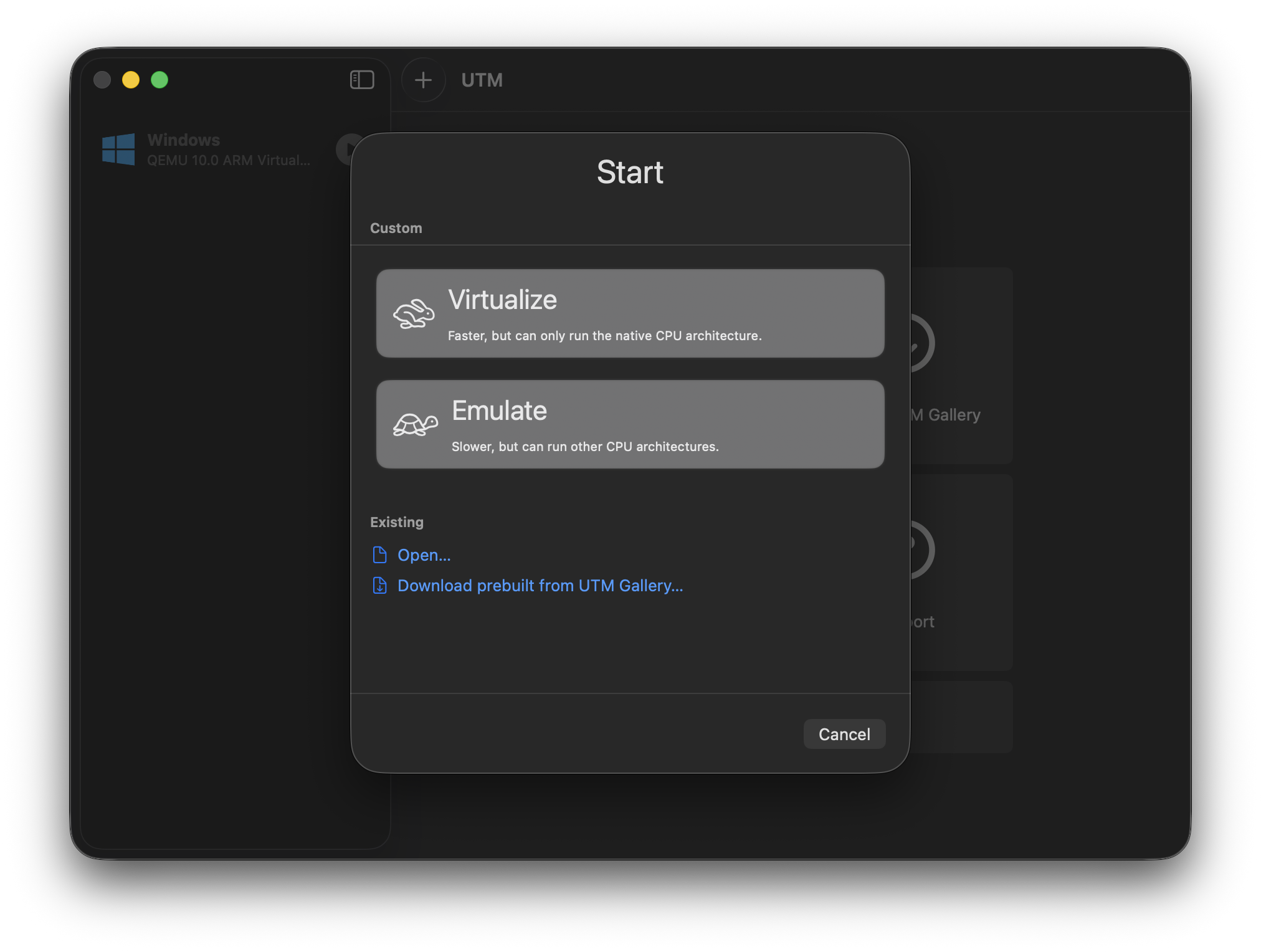
First, click the +(New) button and them select Virtualize.
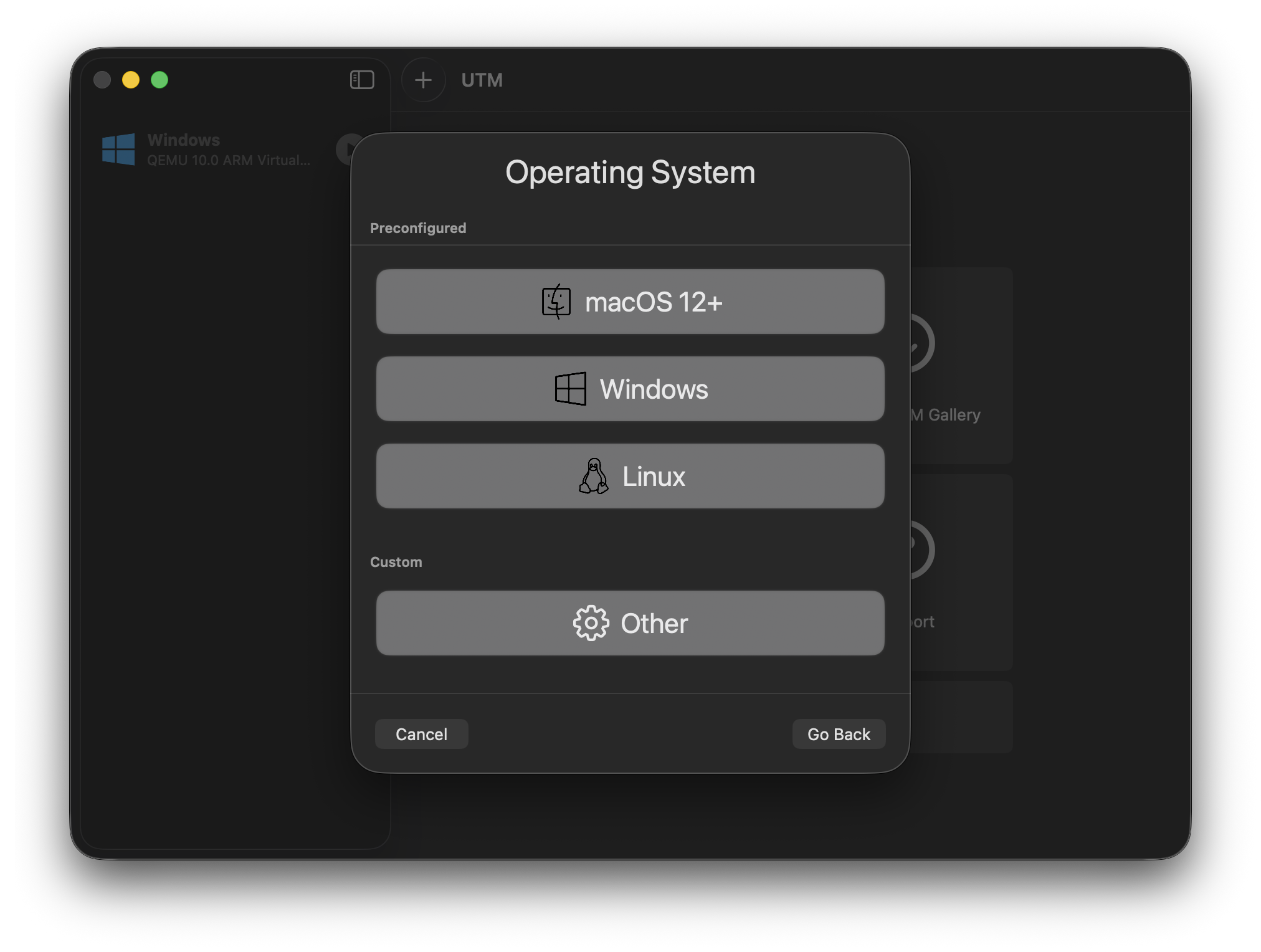
Choose Linux.
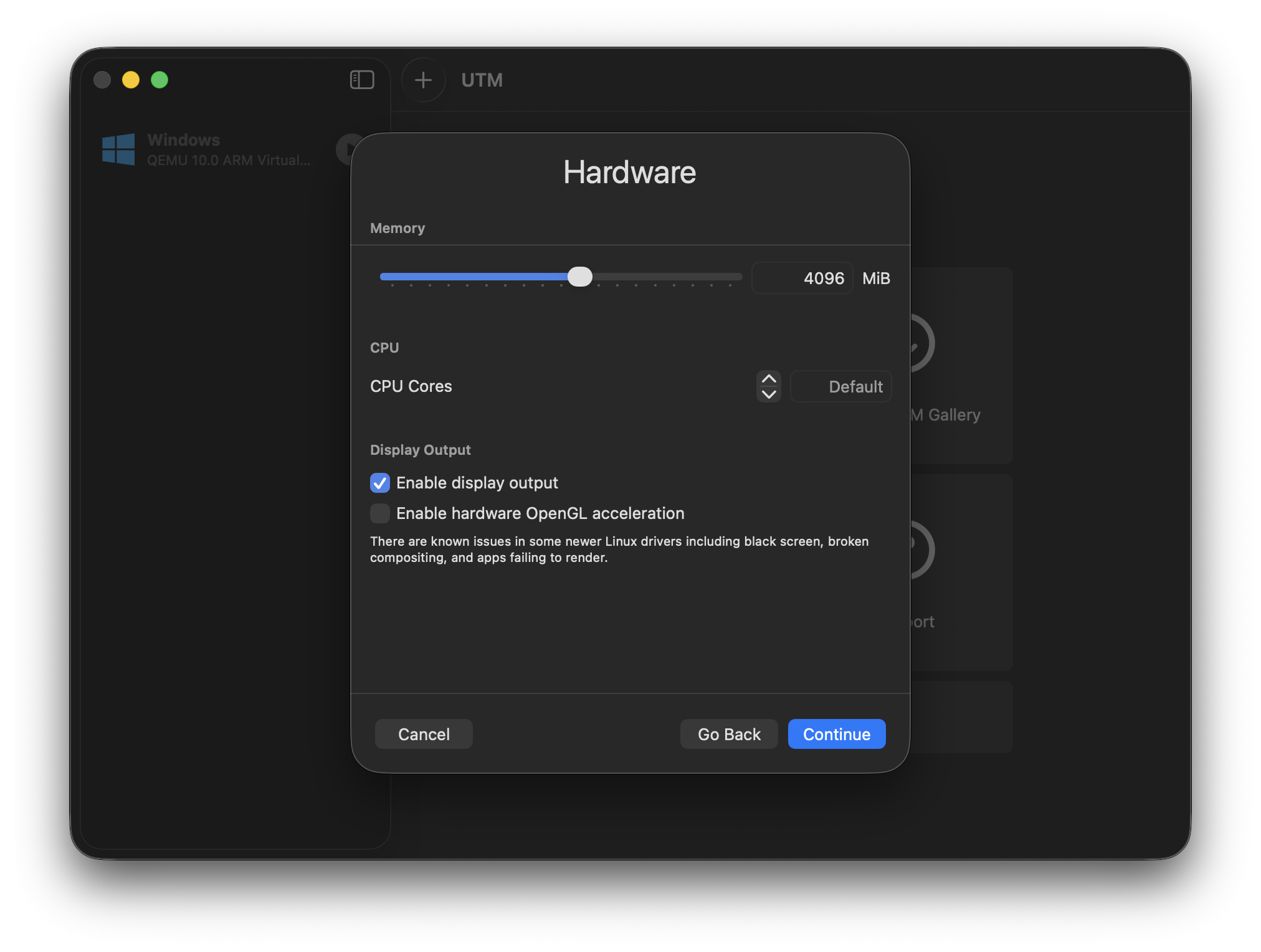
Adjust the amount of RAM you wanted to share with the Linux Guest, I’ll be using 4096MiB here.
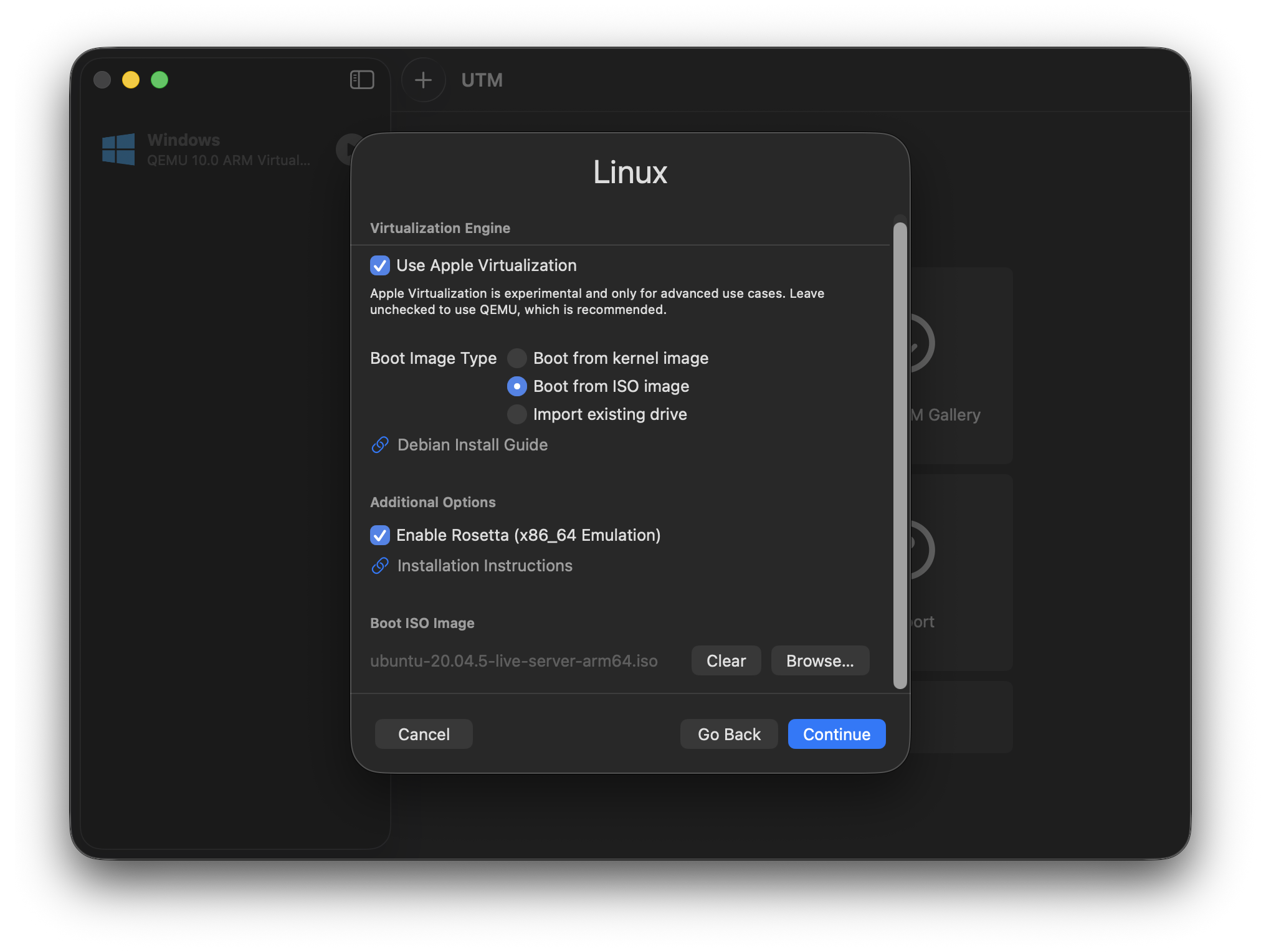
This is the most important part. Make sure to enable “Use Apple Virtualization” and “Enable Rosetta (x86_64 Emulation)”, also don’t forget to select your installation ISO at the bottom.
After that, just keep continuing and save the VM.
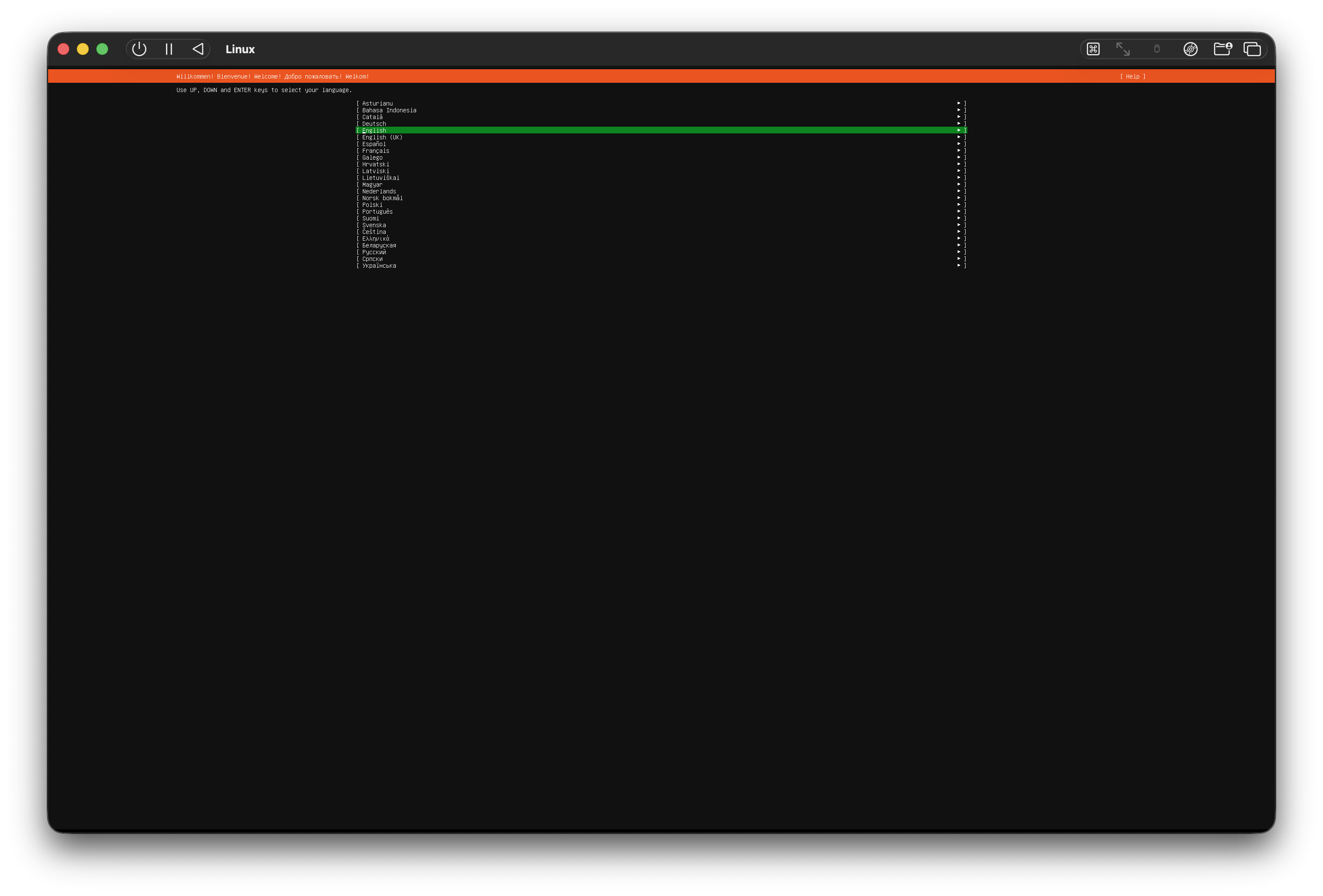
After it boots Install the OS like normal.
NOTE
If your Ubuntu server installer is stuck on “Installing Security updates” just cancel it can force reboot the guest.
IMPORTANT
Make sure to remove the ISO drive in the VM’s config after installation!
Enabling Rosetta in Ubuntu
NOTE
You can ssh from you host’s terminal to the Ubuntu guest with the guest’s IP.
For example, 192.168.64.4. Typeip ain the VM’s console for more details.
I followed the guide on the UTM Document for the following commands. Link
Mounting Rosetta Runtime
First, Mount Rosetta
sudo mkdir /media/rosetta
sudo mount -t virtiofs rosetta /media/rosetta
The command above mounts Rosetta at /media/rosetta. You can change it to whatever you want, but make sure to change the path of other commands too!
Mount on startup
Modify your /etc/fstab and add the following line:
rosetta /media/rosetta virtiofs ro,nofail 0 0
Register Rosetta as a x86_64 ELF handler
Install binfmt-support
sudo apt update
sudo apt install binfmt-support
Register Rosetta
sudo /usr/sbin/update-binfmts --install rosetta /media/rosetta/rosetta \
     --magic "\x7fELF\x02\x01\x01\x00\x00\x00\x00\x00\x00\x00\x00\x00\x02\x00\x3e\x00" \
     --mask "\xff\xff\xff\xff\xff\xfe\xfe\x00\xff\xff\xff\xff\xff\xff\xff\xff\xfe\xff\xff\xff" \
     --credentials yes --preserve yes --fix-binary yes
Enable Ubuntu’s amd64 support
Create the new list file:
sudo touch /etc/apt/sources.list.d/amd64-cross-compile-sources.listWARNING
The following source list config is for Ubuntu 20.04 only.
For other versions, please edit the config.
Add the following lines into /etc/apt/sources.list.d/amd64-cross-compile-sources.list:
deb [arch=amd64] http://archive.ubuntu.com/ubuntu/ focal main restricted
deb [arch=amd64] http://archive.ubuntu.com/ubuntu/ focal-updates main restricted
deb [arch=amd64] http://archive.ubuntu.com/ubuntu/ focal universe
deb [arch=amd64] http://archive.ubuntu.com/ubuntu/ focal-updates universe
deb [arch=amd64] http://archive.ubuntu.com/ubuntu/ focal multiverse
deb [arch=amd64] http://archive.ubuntu.com/ubuntu/ focal-updates multiverse
deb [arch=amd64] http://archive.ubuntu.com/ubuntu/ focal-backports main restricted universe multiverse
Edit the /etc/apt/sources.list.d/original.list, add [arch=arm64] to every existing entry.
For example:
Before:
deb http://ports.ubuntu.com/ubuntu-ports/ focal main restricted
deb http://ports.ubuntu.com/ubuntu-ports/ focal-updates main restricted
deb http://ports.ubuntu.com/ubuntu-ports/ focal universe
deb http://ports.ubuntu.com/ubuntu-ports/ focal-updates universe
deb http://ports.ubuntu.com/ubuntu-ports/ focal multiverse
deb http://ports.ubuntu.com/ubuntu-ports/ focal-updates multiverse
deb http://ports.ubuntu.com/ubuntu-ports/ focal-backports main restricted universe multiverse
deb http://ports.ubuntu.com/ubuntu-ports/ focal-security main restricted
deb http://ports.ubuntu.com/ubuntu-ports/ focal-security universe
deb http://ports.ubuntu.com/ubuntu-ports/ focal-security multiverse
After:
deb [arch=arm64] http://ports.ubuntu.com/ubuntu-ports/ focal main restricted
deb [arch=arm64] http://ports.ubuntu.com/ubuntu-ports/ focal-updates main restricted
deb [arch=arm64] http://ports.ubuntu.com/ubuntu-ports/ focal universe
deb [arch=arm64] http://ports.ubuntu.com/ubuntu-ports/ focal-updates universe
deb [arch=arm64] http://ports.ubuntu.com/ubuntu-ports/ focal multiverse
deb [arch=arm64] http://ports.ubuntu.com/ubuntu-ports/ focal-updates multiverse
deb [arch=arm64] http://ports.ubuntu.com/ubuntu-ports/ focal-backports main restricted universe multiverse
deb [arch=arm64] http://ports.ubuntu.com/ubuntu-ports/ focal-security main restricted
deb [arch=arm64] http://ports.ubuntu.com/ubuntu-ports/ focal-security universe
deb [arch=arm64] http://ports.ubuntu.com/ubuntu-ports/ focal-security multiverse
And finally, enable amd64 support and update packages:
sudo dpkg --add-architecture amd64
sudo apt update
Torubleshooting
E: The repository 'file:/cdrom focal Release' no longer has a Release file.
Edit the /etc/apt/sources.list and remove the deb [check-date=no] file:///cdrom focal main restricted line.
E: Failed to fetch http://..../.../binary-amd64/Packages 404 Not Found [IP: ....]
You didn’t add [arch=arm64] to every entry in your /etc/apt/sources.list.d/original.list.
Domain names are not resolving.
Your DNS might not been set up edit /etc/systemd/resolved.conf and Uncomment the DNS= line and add your preferred DNS servers e.g.DNS=8.8.8.8 1.1.1.1.
Also restart the service to make sure the changes apply:
sudo systemctl restart systemd-resolved